
Your market, in focus
Charts, sample assets, and a place to start.
 POKZEN / EXPERTOPTION
Keep the selected strategy, session boundaries, and activity together in the ExpertOption workspace. Try the complete flow as a local demo with virtual funds, sample signals, and no broker connection.
Practice at your pace. Your limits stay in view.
 Pokzen
Charts, sample assets, and a place to start.
Review session limits before you begin.
Follow the signal through to your activity.
Your workflow
Move from your first setup to your next review, with ExpertOption at the center of your workspace.
Select a market and review the chart alongside the amount and duration for your demo trades.
Open the strategy panel to select a preset and adjust the session profit and loss limits.
Start the robot, follow its sample signal status, and inspect the deal details as the session progresses.
Inside ExpertPokzen
A focused app for the way you practice. Explore the screens, then step into your own demo session.
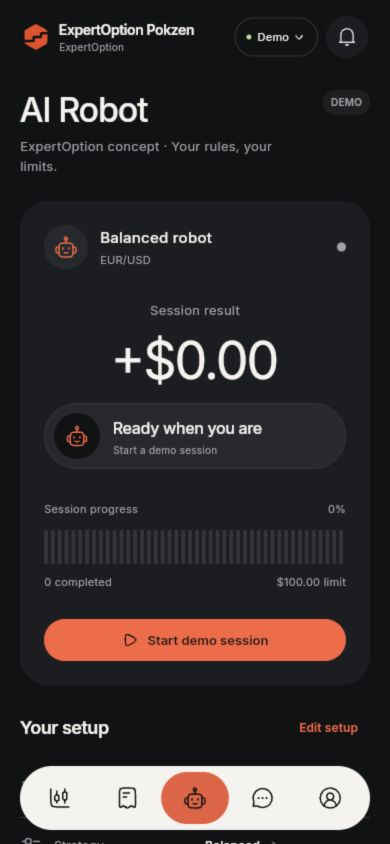
See the current strategy, asset, amount, and limits in the robot configuration before starting a session.
Follow the animated preparation state, sample signal direction, completed count, and progress toward a session limit.
Deal sheets show the source, direction, amount, and timing of each trade so you can follow the example from start to finish.
Open the web app or download the Android preview to explore ExpertPokzen.
Before you explore
Get to know the ExpertPokzen workspace and what you can do in the demo.
Trading, Deals, AI Robot, Support, and Account are available from the main navigation. You can explore market selection, session setup, activity, and account preview flows.
Balanced, Conservative, and Momentum appear in the strategy panel. You can also adjust the trade amount and the session profit and loss limits there.
The trend, momentum, and volatility indicators are sample displays. Signals and outcomes use a preset local sequence to demonstrate the interface.
Yes. Pause robot stops new entries, while an open demo trade completes on its existing timer. The session also pauses when a configured profit or loss limit is reached.
No. This is a local demo with virtual funds. It does not connect a broker account, place real trades, collect payment details, or transfer money.
A clearer next step
Start with a setup. Explore at your own pace.